Workflow walkthroughs

Follow a request from start to finish

These walkthroughs use real software screens with fictional records. Each one notes what was tested and where the demonstration stops.

Choosing an approach for your own process? Read how to compare AI agents and workflow automation before deciding which steps need fixed rules, interpretation, or a person’s review.

An example you can try

Take a sample request through the next steps.

Explore the T.E.A.M. Tree Service story and a separate interactive field-service illustration.

Try the example

Anonymous field-service example

From inquiry to estimate visit

Keep the original request, follow-up notes, and estimate visit connected as the work moves forward.

  1. Service request
  2. Lead record
  3. Follow-up
  4. Estimate visit
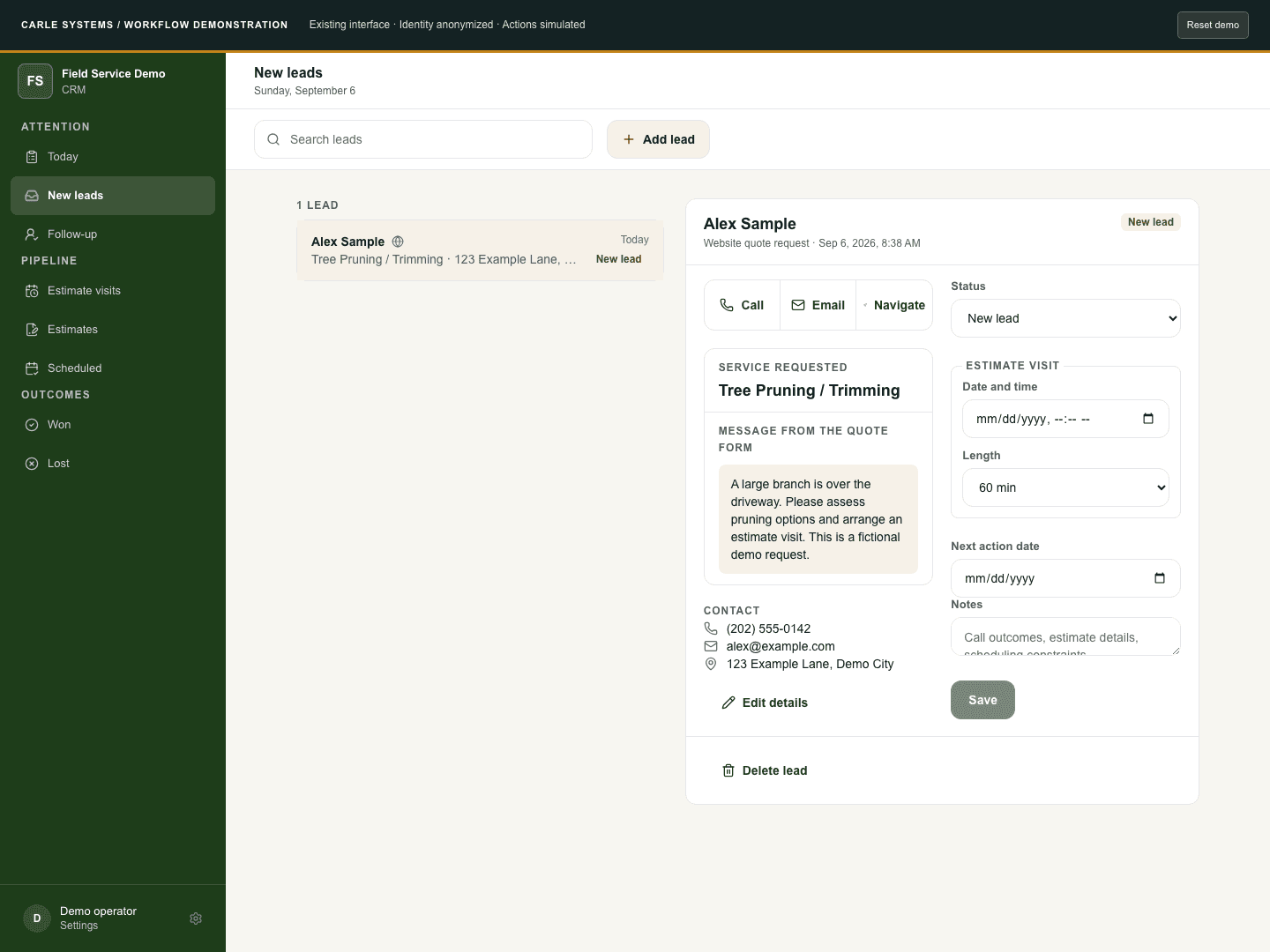
Fictional lead record in the field-service demonstration, with a visible simulation banner
A request stays available while someone records the next action and schedules a visit. The person doing the work can see what happens next.
Capture the request
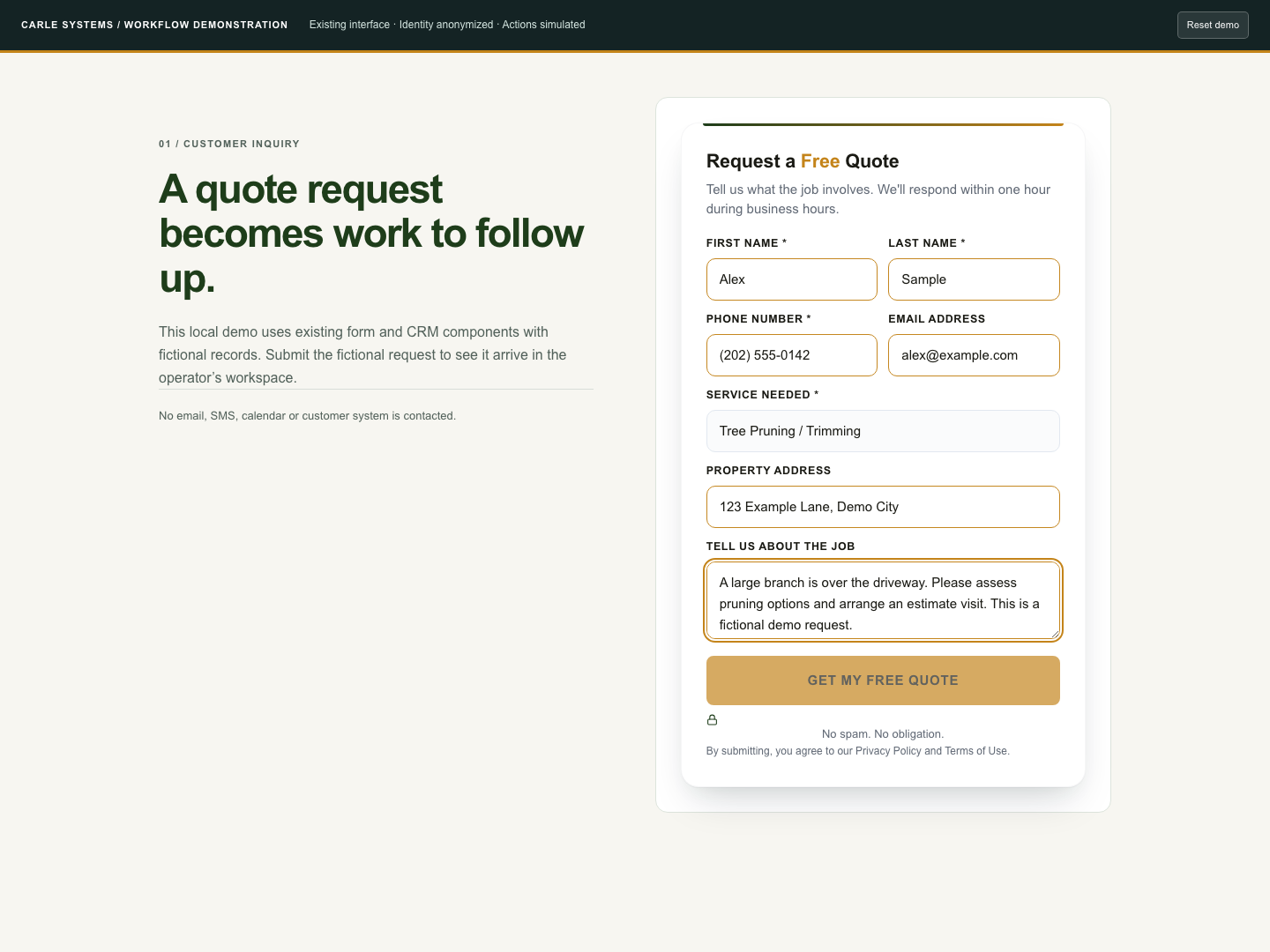
A fictional service request captures the contact information and job details needed for follow-up. Submission is simulated.
A fictional service request captures the contact information and job details needed for follow-up. Submission is simulated.Open full-size screenshot
Keep one lead record
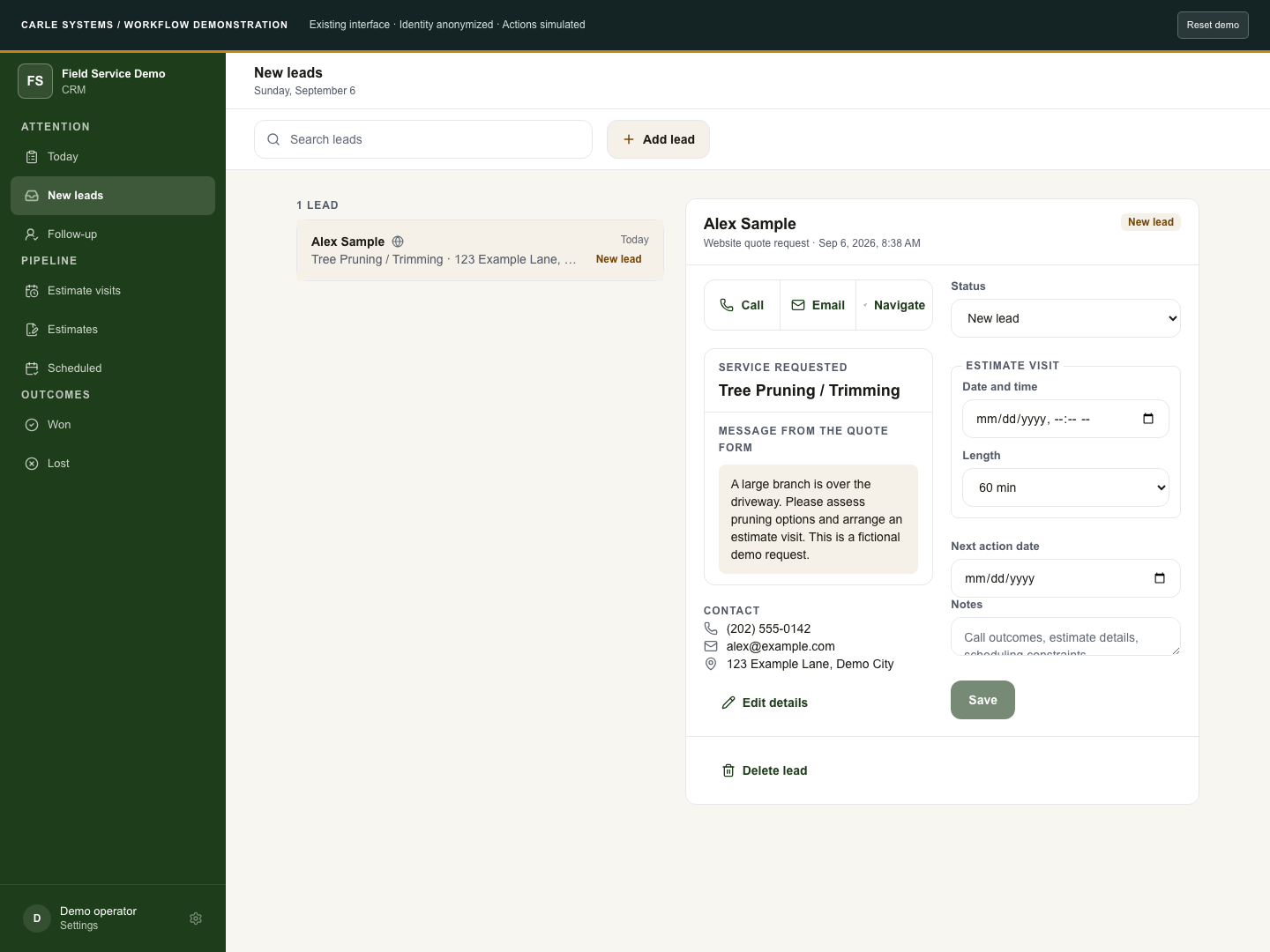
The same fictional request appears in a lead record with its service, contact details, and status.
The same fictional request appears in a lead record with its service, contact details, and status.Open full-size screenshot
Record the next action
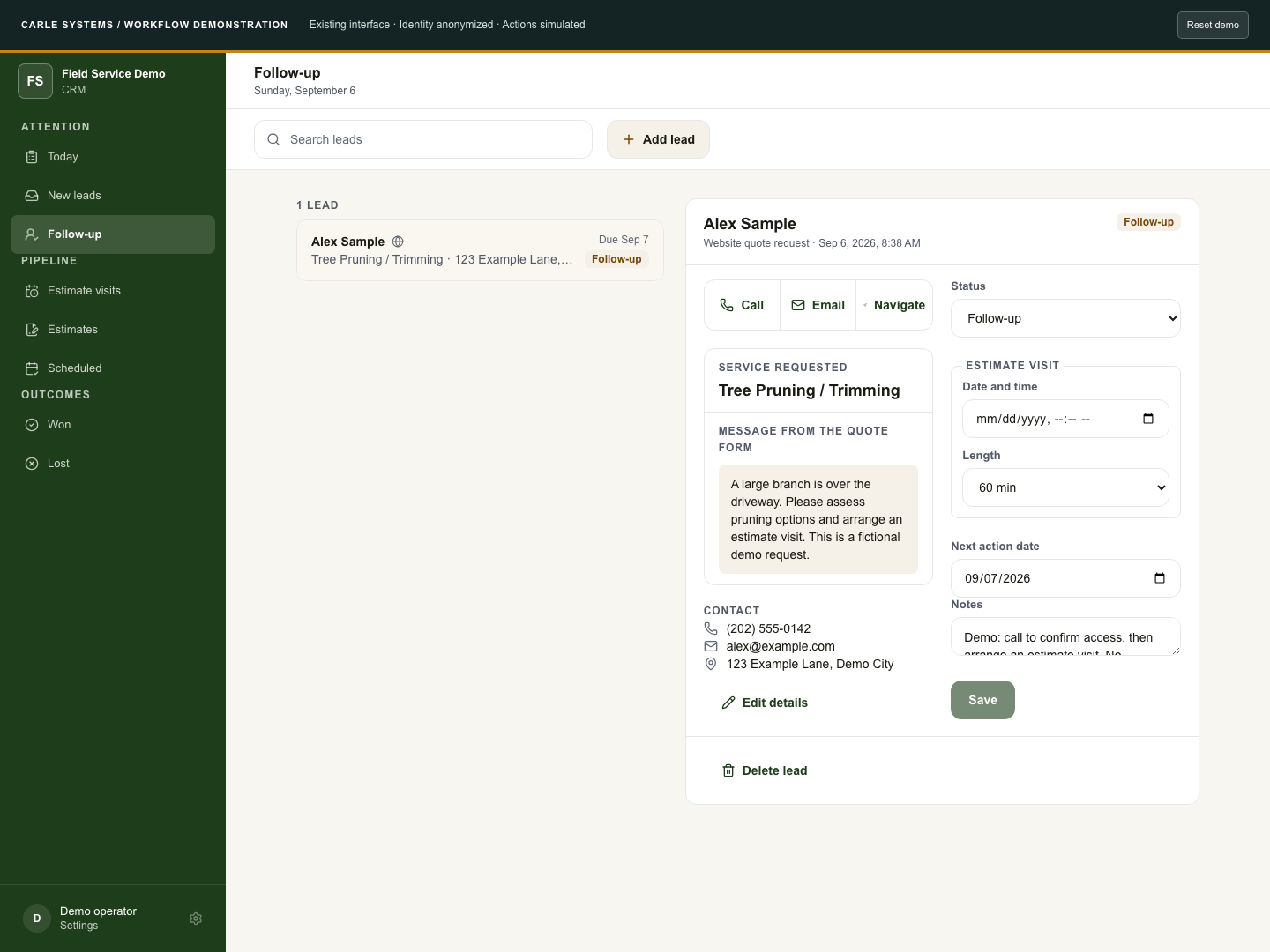
The operator adds a next-action date and notes while keeping the original request available.
The operator adds a next-action date and notes while keeping the original request available.Open full-size screenshot
Schedule an estimate visit
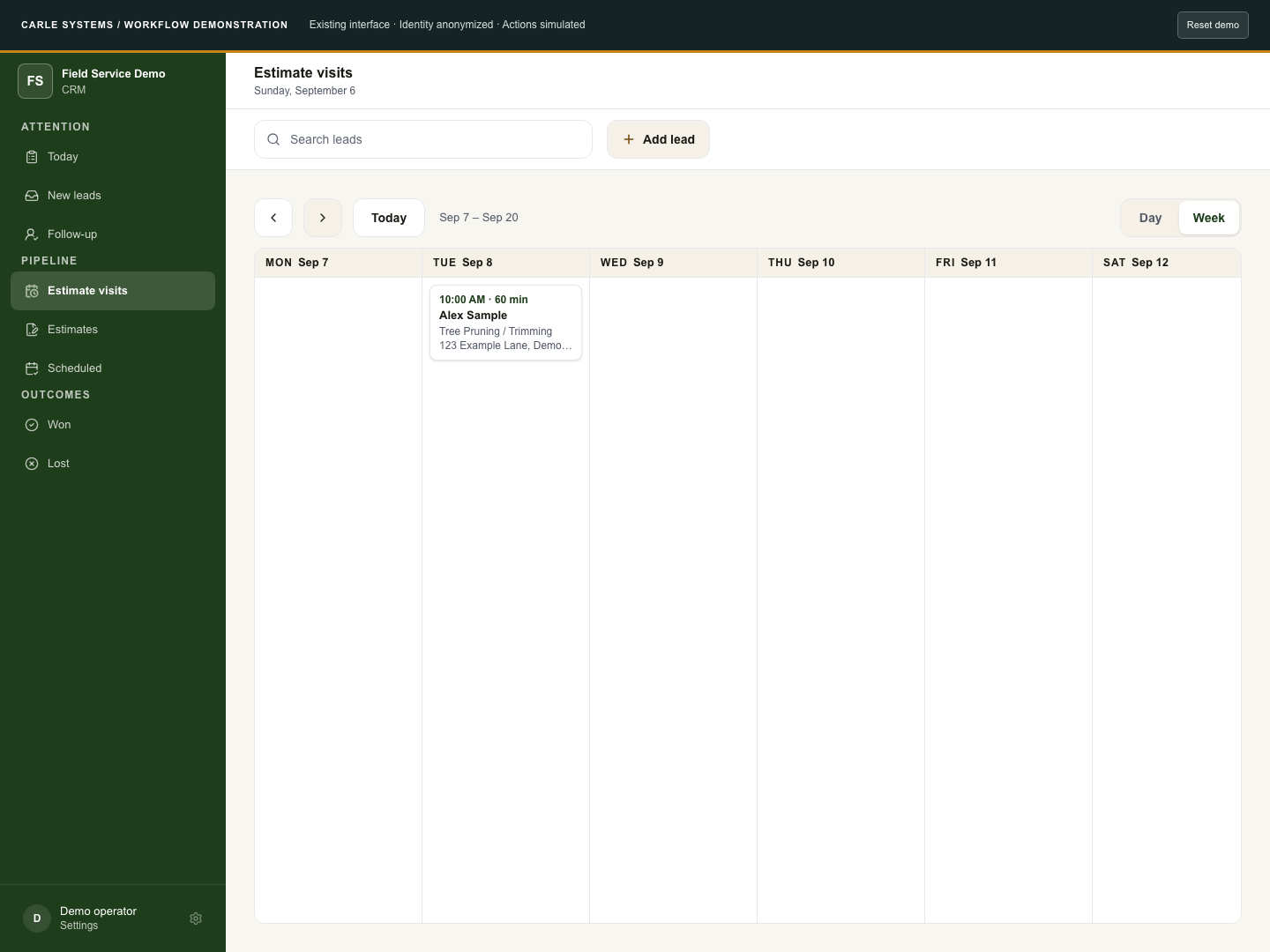
An estimate visit appears on the calendar with its date, time, and duration.
An estimate visit appears on the calendar with its date, time, and duration.Open full-size screenshot
Check the day on a phone
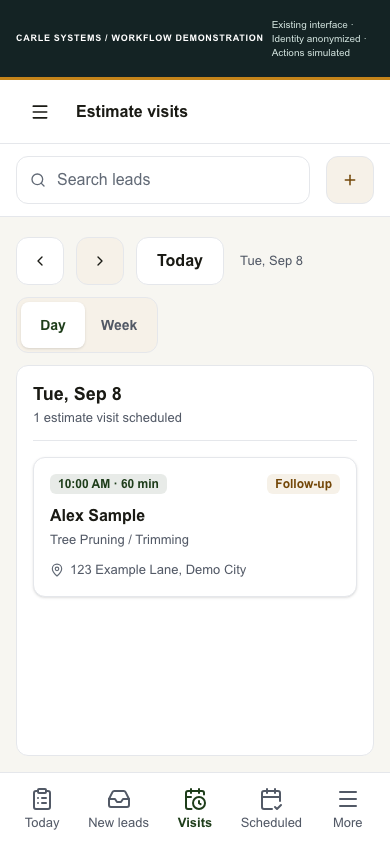
The same fictional estimate visit in the mobile day view.
The same fictional estimate visit in the mobile day view.Open full-size screenshot

Carle Books · Internal Carle Systems product

From signed agreement to draft invoice

Prepare the invoice when a signature is recorded, with automatic preparation enabled. Keep review and sending as separate steps.

  1. Agreement sent
  2. Signature recorded
  3. Draft prepared
  4. Human review
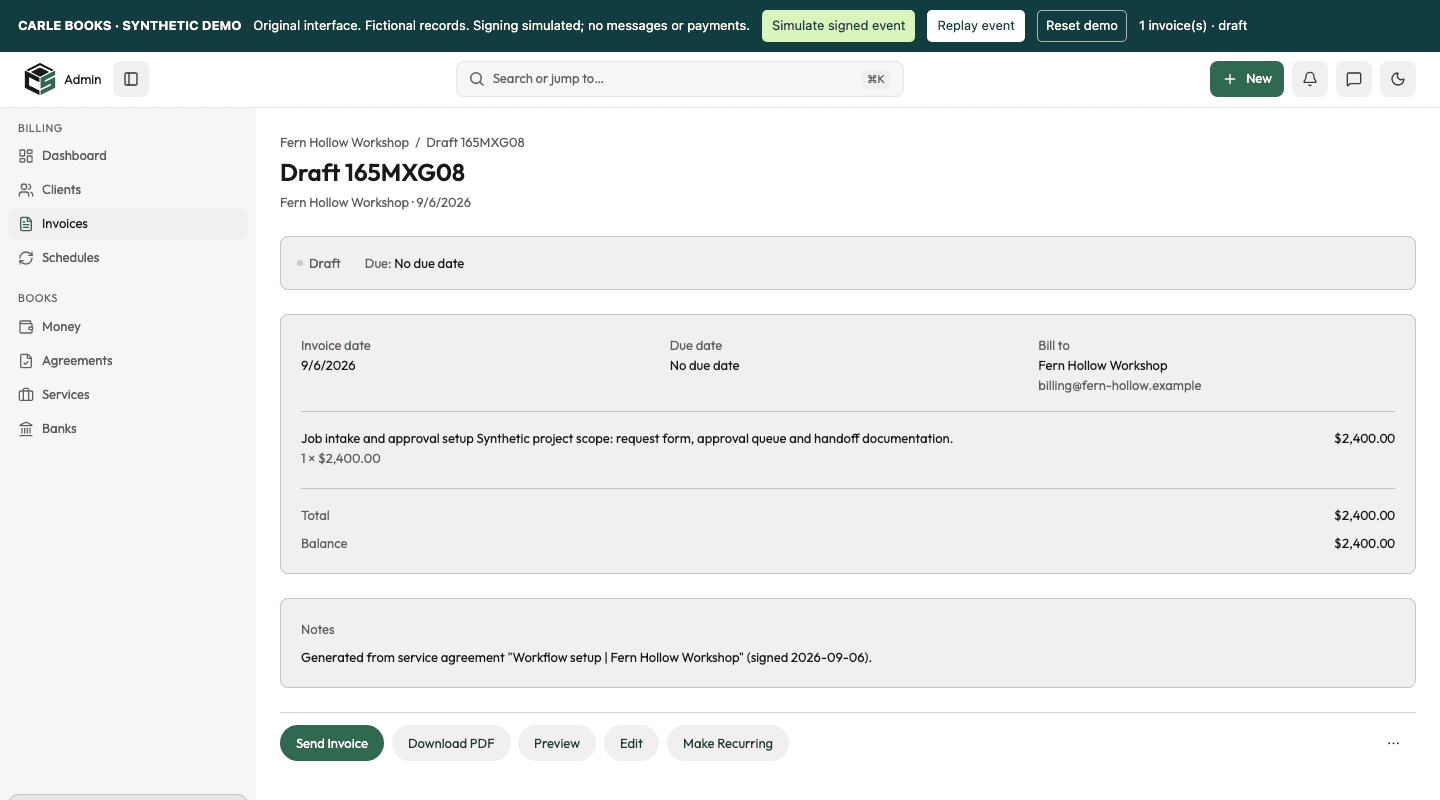
Carle Books draft invoice with fictional service details and a separate Send Invoice action
The handoff prepares a draft for a person to review. Repeated delivery of the same signing event does not create another invoice in the demonstrated workflow.
Start with a sent agreement
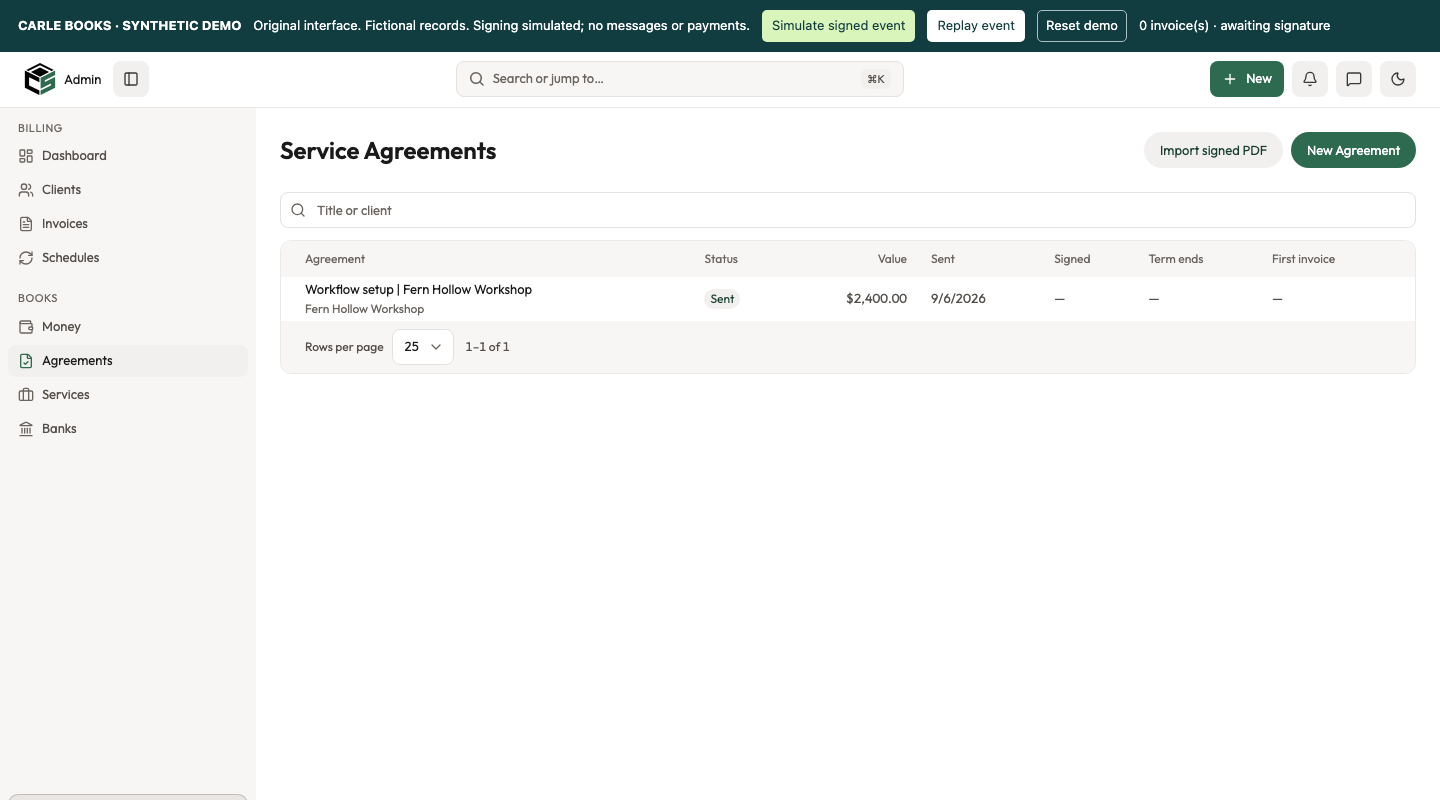
The fictional agreement is sent, with no invoice prepared yet.
The fictional agreement is sent, with no invoice prepared yet.Open full-size screenshot
Record the signature
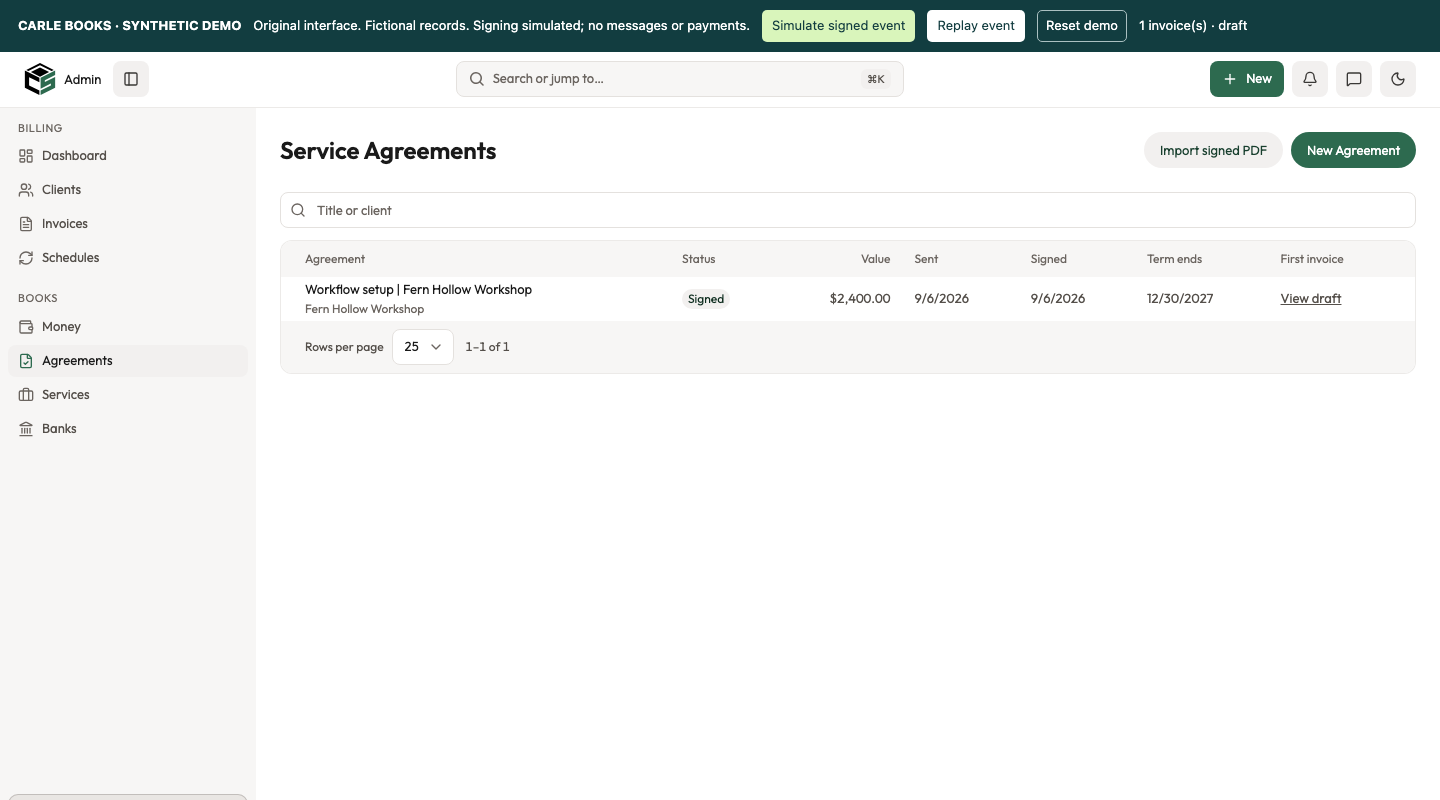
With automatic preparation enabled, a simulated completed signature creates a link to one draft invoice.
With automatic preparation enabled, a simulated completed signature creates a link to one draft invoice.Open full-size screenshot
Review before sending
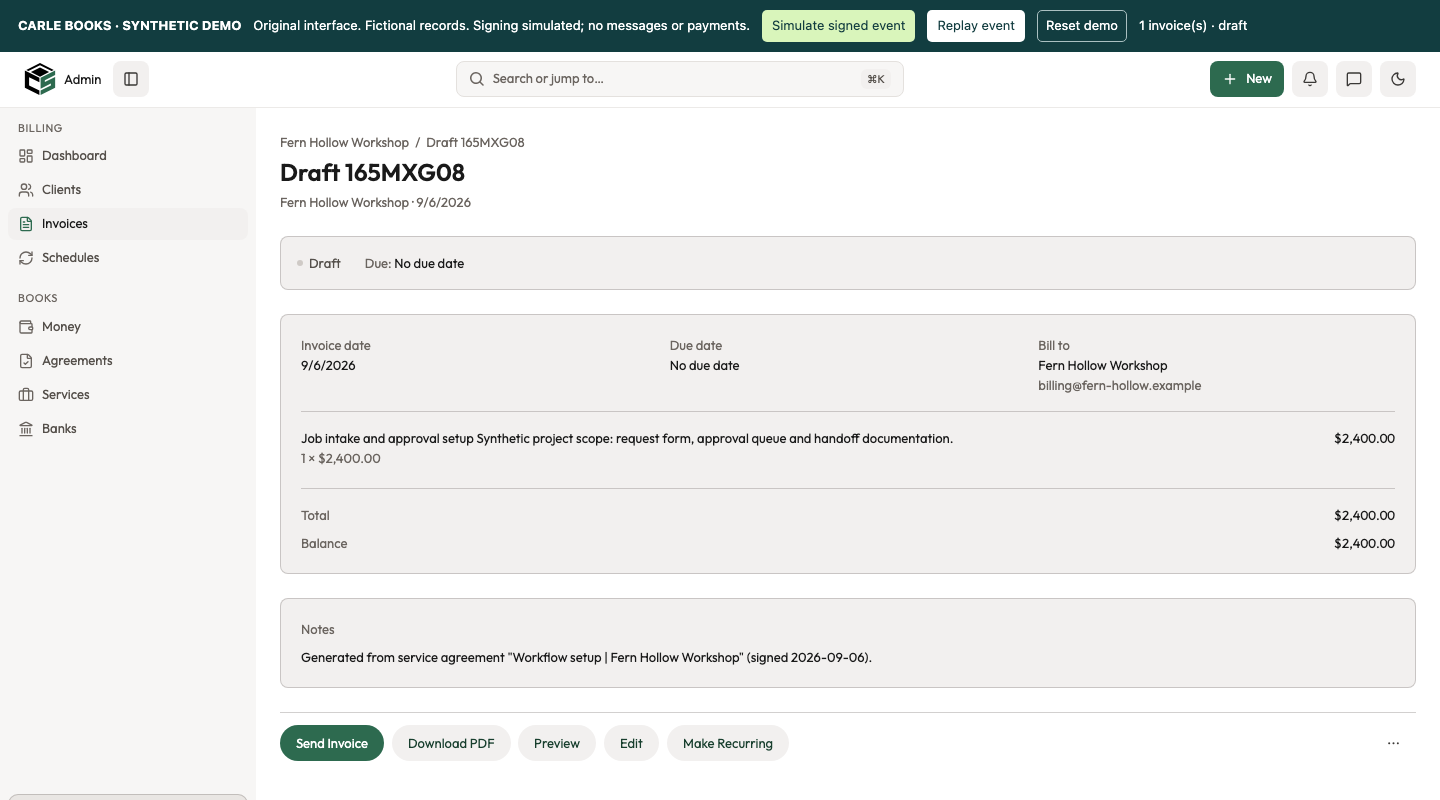
The draft carries the service details forward and keeps Send Invoice as a separate action.
The draft carries the service details forward and keeps Send Invoice as a separate action.Open full-size screenshot
Review at phone width
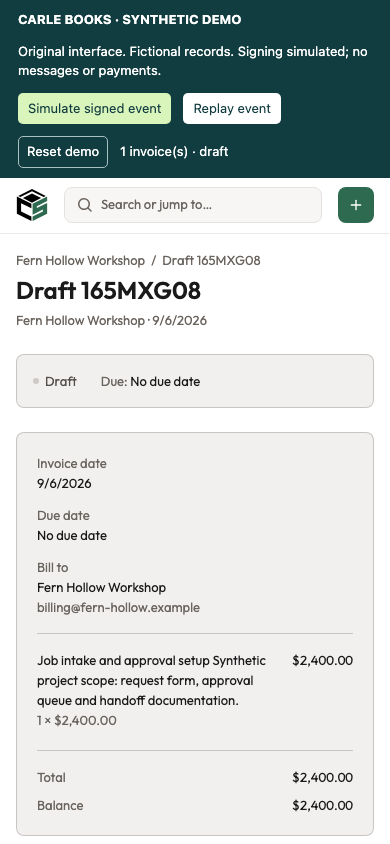
The same fictional draft is available for review at phone width.
The same fictional draft is available for review at phone width.Open full-size screenshot

Contact

What’s taking
too much of your time?

Tell me where the work gets stuck.
I’ll tell you what’s worth fixing first.

Let’s talk hunter@carlesystems.com Messages come straight to me